
How to Fix a Brother Printer That Won’t Print: A Step-by-Step Troubleshooting Guide for Repair
Share This:
Step-by-Step Solutions for Printer Repair in the Office
For many businesses, a Brother printer is a quiet workhorse, handling invoices, reports, and everyday documents without a second thought. But when that printer suddenly won’t print, the impact is immediate: stalled workflows, frustrated employees, and wasted time. The silver lining is that most issues have straightforward solutions if you know where to look. This guide outlines how to fix a Brother printer that won’t print with practical troubleshooting steps you can take right away. And if the problem runs deeper, we’ll point out when it’s time to call in professional printer repair support to get your office back on track.
Step 1: Check Power, Connections, and Network Setup
Before you assume something major is wrong, start simple. A Brother printer that won’t print is often just disconnected somewhere along the way.
Power and Cables
- First, make sure the printer is actually on (it sounds obvious, but it happens more often than you’d think).
- Check that the power cord is snug in the outlet and the printer.
- If you’re using a USB or Ethernet cable, give it a quick check too. A loose or worn cable can cause the printer to drop offline.
Wi-Fi and Network Access
- If your office prints over Wi-Fi, confirm the printer is connected to the correct network (it’s possible for it to “jump” onto another one if you’ve got multiples running).
- If other devices are also having trouble staying online, a quick router reset can sometimes clear things up.
- For wired connections, look for blinking lights on the Ethernet port. It’s a quick sign that data is flowing.
Shared Printer Settings
- In many offices, printers are shared. Make sure your Brother printer is showing up for everyone on the network.
- If it’s managed through a server, permissions can occasionally reset after updates. Double-check access if some employees can print and others can’t.
Step 2: Inspect Ink, Toner, and Paper Supply
If the connections check out, the next place to look is at the supplies. Printers can be surprisingly picky. Running low on toner, an empty tray, or even one crumpled sheet of paper can bring everything to a stop.
Toner and Ink Levels
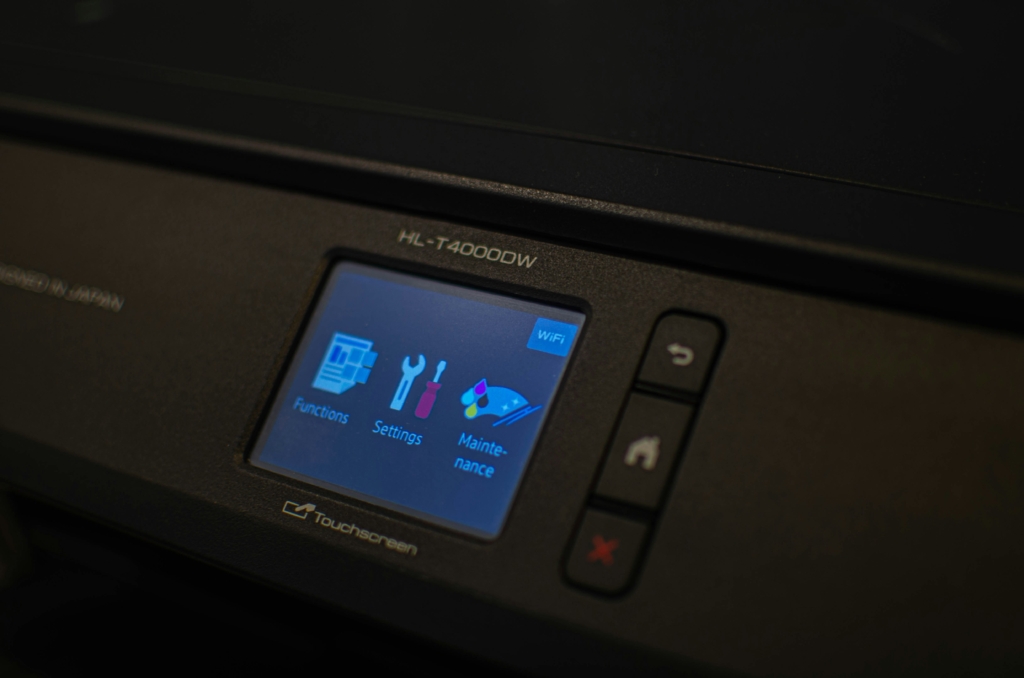
- Use the printer’s display or the Brother software on your computer to check supply levels.
- If cartridges are flagged as “low,” go ahead and swap them out. Running them dry can leave you with faded or streaky pages.
- It’s a good idea to keep a spare toner set nearby so your team isn’t stuck waiting for a delivery.
Paper Trays and Feeders
- Double-check that the paper tray isn’t empty and that the sheets are loaded straight.
- Clear out any jams in the tray, feeder, or rear panel. Even a small scrap of paper can block new jobs.
- If your office runs a lot of print jobs, consider loading different paper sizes in separate trays to avoid constant reloading.
Preventing Repeat Issues
- Fan a stack of paper before loading it to reduce sticking or double-feeds.
- Store paper in a dry place; humidity can curl sheets and cause jams.
- Clean the rollers occasionally to help the printer grab sheets smoothly.

Step 3: Review Printer Settings and Print Queue
Even when your printer has power, a solid connection, and plenty of supplies, jobs can still get stuck before they ever reach the page. That’s usually a sign to check the printer’s settings and the print queue.
Default Printer Settings
- On each workstation, confirm that the Brother printer is set as the default device.
- If the wrong printer is selected (or a virtual “PDF printer” is set instead), jobs won’t make it to the device you expect.
Clearing the Queue
- Open the print queue to see if jobs are stalled or piling up.
- Delete or restart anything that’s frozen. One bad job can block all the others behind it.
- For offices using a shared printer, multiple users can end up stuck until the queue is cleared.
Print Spooler Service
- If clearing the queue doesn’t help, restart the print spooler (the system that manages print jobs).
- On Windows, this can usually be done through the Services menu; on Mac, a system restart often clears the spooler.
- Once restarted, try sending a fresh job to see if it goes through.
Step 4: Update or Reinstall Brother Printer Drivers
If the print queue looks fine but your Brother printer still isn’t working properly, the issue may be with the software that connects your computer to the printer. Outdated or corrupted drivers are a common culprit, especially in offices where multiple users share the same device.
Why Drivers Matter
- Printer drivers act as the “translator” between your computer and the printer.
- If they’re outdated, the computer may not send jobs correctly, even if the printer itself is working fine.
- Corrupted drivers can cause strange behavior, from incomplete jobs to the printer not responding at all.
Updating Your Drivers
- Go to Brother’s official support site and download the latest version for your printer model.
- Follow the installation steps, and restart your computer once the update is complete.
- For networked printers, updating the drivers on the central print server ensures everyone is using the same, correct version.
Reinstalling if Necessary
- If updates don’t fix the issue, uninstall the current drivers and reinstall a fresh copy.
- This clears out corrupted files and resets the connection between your computer and the printer.
- Be sure to download drivers directly from Brother, not third-party sites, to avoid compatibility or security issues.
Step 5: Run Test Prints and Diagnostics
By now, you’ve checked the connections, supplies, queue, and drivers, but if your Brother printer still won’t print, it’s time to run a few quick tests. This step not only helps confirm the fixes you’ve already tried, but also makes it easier to explain the problem if you end up calling for support.
Use Built-In Tools
- Most Brother printers include a self-diagnostic menu that highlights common issues.
- Run a test print to confirm whether the printer is receiving data and using toner properly.
- If the test page prints fine, the problem may be with your computer or network setup rather than the printer itself.
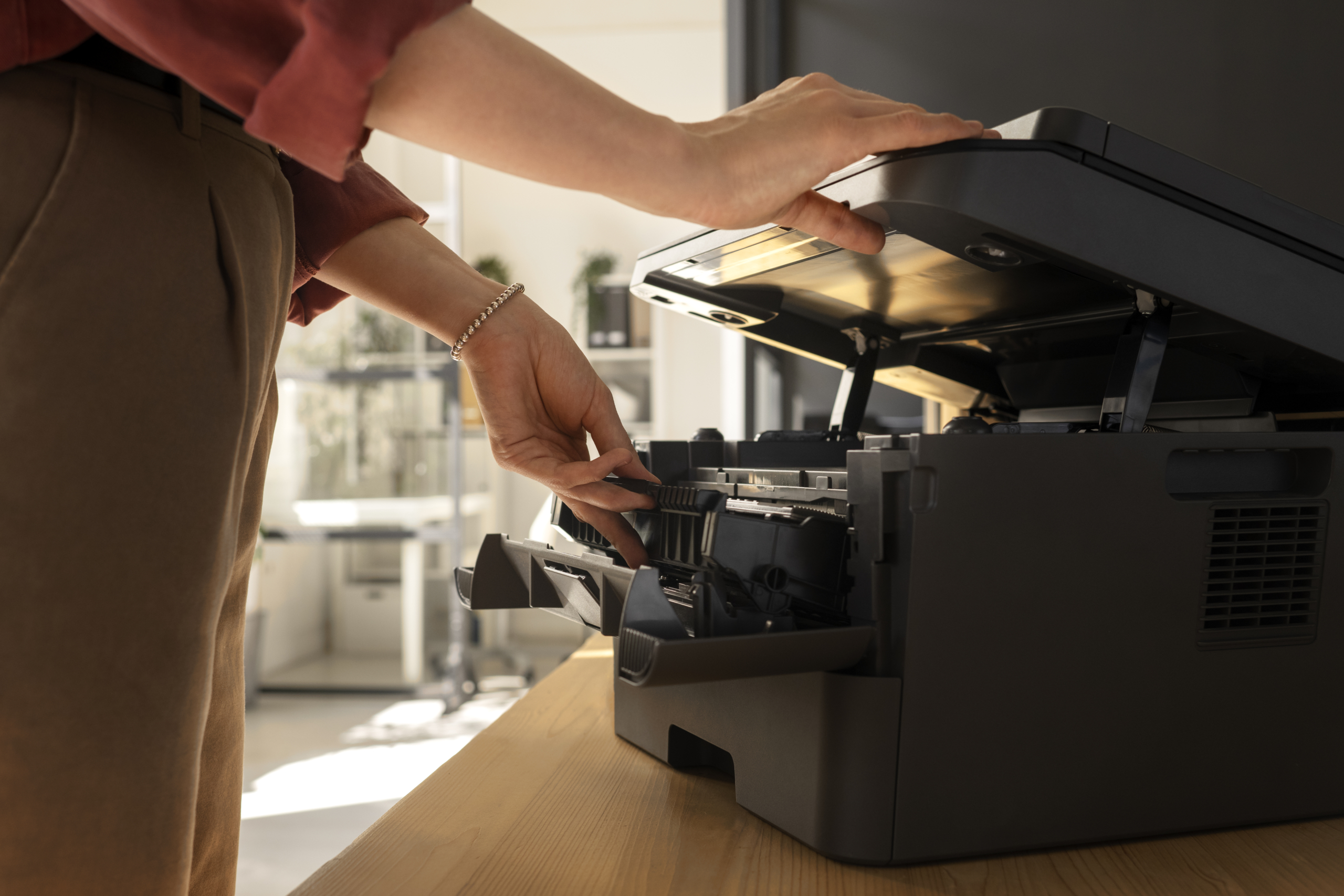
- If your test prints still fail after these checks, the problem may stem from internal components such as the print head, drum, or fuser; issues that typically require professional printer repair.
Check Error Codes and Logs
- Brother devices often display error codes that point to the source of the issue.
- Use the printer manual or Brother’s online resources to match the code with a recommended fix.
- In office environments, reviewing the event log can show if the same error is happening across multiple users.
Apply Firmware Updates
- Firmware updates are like system upgrades for your printer. They patch bugs and improve compatibility.
- Check Brother’s support site for any recommended updates for your particular model.
- Applying updates can resolve recurring issues and help prevent the same problem in the future.
When to Call for Professional Printer Repair
If your device still isn’t responding after all these steps, it may be time to contact a professional printer repair service. That’s where ASR Tech comes in. Our team specializes in diagnosing and repairing business printers quickly, so your workflows don’t stay on hold longer than they need to.
Knowing how to fix a Brother printer that won’t print is valuable for day-to-day troubleshooting, but having a dependable partner ensures you’re never stuck when the problem goes deeper. From preventative maintenance to same-day repairs, ASR Tech is here to keep your business printing reliably.